界面模组制作
Interface modding 允许更改部分原版界面,但有一些重要限制:
- interfaces are hardcoded to match vanilla religion groups.
- UI 按钮的行为是硬编码的,无法修改,尽管现有按钮可以移动或隐藏。
To identify interface elements, activate interface debug mode by pressing the same keys as for opening the console 但仍然在主菜单中(加载后就不再使用)。 它会显示在哪个文件中以及哪行定义了这些元素。
List of interface files
以下是最重要的接口文件列表及其内容:
| Name | Description |
|---|---|
| main.gui | Main interface when running the game (minimap, chat, ...) |
| frontend.gui | Lobby interface (choose starting era, country selection, multiplayer, ...) |
| domestic_overview.gui | Primary title tab |
| domestic_dynastic.gui | Character tab |
| domestic_court.gui | Councillors tab |
| domestic_law.gui | Laws tab |
| domestic_technology.gui | Technology tab |
| domestic_military.gui | Military tab |
| domestic_plots.gui | Intrigue tab |
| domestic_factions.gui | Factions tab |
| domestic_religion.gui | Religion / College of Cardinal tabs |
| province.gui | Province window, with its settlements/fort/trade post |
| focusview.gui | Focus window |
| combat.gui | Combat window |
| waroverview.gui | Warscore window |
| unitpanel.gui | Army window |
| domestic_diplomacy.gui | Diplomacy popup |
| eventwindow.gui | Event popups (normal, narrative, letter, ...) |
Structure of .gui files
 |
这是一篇小作品。你可以通过编辑或修订扩充其内容。 如果可以请尽你所能的去协助完善这篇文章。 |
Choose starting era window
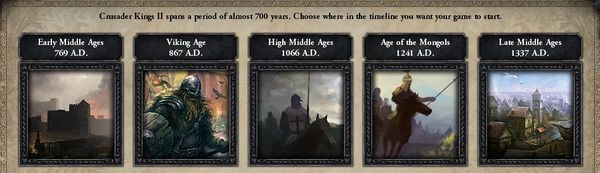
 |
As of patch 2.5,起始时代不再需要更改界面模组,参见 bookmark modding. |
前两个起始时代是DLC锁定的,所以最好的办法是通过覆盖来隐藏它们 interface/frontend.gui in the mod and by replacing position 用于图片/dlc_requirement/load_progress/标签/年份框,dark_ages_window和viking_era_window窗,配有:
position = { x=-2000 y=-2000}
在bookmarks.txt中,给你想在时代界面看到的3个书签输入原版的硬编码名称:
- 3rd era:
name = "BM_FATE_OF_ENGLAND" - 4th era:
name = "BM_THE_MONGOLS" - 5th era:
name = "BM_100_YEARS_WAR"
如果需要,你可以调整它们的位置并居中,配合一些合适的位置。
覆盖模组本地化文件夹中.csv文件中的以下硬编码本地化密钥:
- PICK_STARTING_ERA_TEXT
- 3rd era: BM_FATE_OF_ENGLAND, EARLY_MED, EARLY_MED_INFO
- 4th era: BM_THE_MONGOLS, HIGH_MED, HIGH_MED_INFO
- 5th era: BM_100_YEARS_WAR, LATE_MED, LATE_MED_INFO
每个书签中,前6个以共同/bookmarks.txt定义的字符会出现,需要通过添加本地化键来描述:
ERA_CHAR_INFO_%chararcter_id%
For instance with:
bookmark =

{

	name = "BM_FATE_OF_ENGLAND"

	desc = "BM_FATE_OF_ENGLAND_DESC"

	date = 1066.9.15


	character = 140 # William the Conqueror

	character = 1316 # Kaiser Heinrich IV

	character = 1128 # Robert de Hauteville

	character = 3096 # Caliph Al-Mustansir of Fatimids

	character = 3040 # Alp Arslan of Seljuks

	character = 74441 # Somesvara I of Chalukyas


	character = 122 # Harold Godwinson

	character = 102531 # Harald Hårdråde

	character = 20663 # Isaac of Khazaria


}
然后,ERA_CHAR_INFO_140、ERA_CHAR_INFO_1316、ERA_CHAR_INFO_1128、ERA_CHAR_INFO_1128和ERA_CHAR_INFO_74441都必须进行本地化。
最后,时代图像还可以自定义,通过覆盖(或更新)前端.gui,加入你自己的GFX:GFX_pick_era_image_3、GFX_pick_era_image_4、GFX_pick_era_image_5
Papal succession
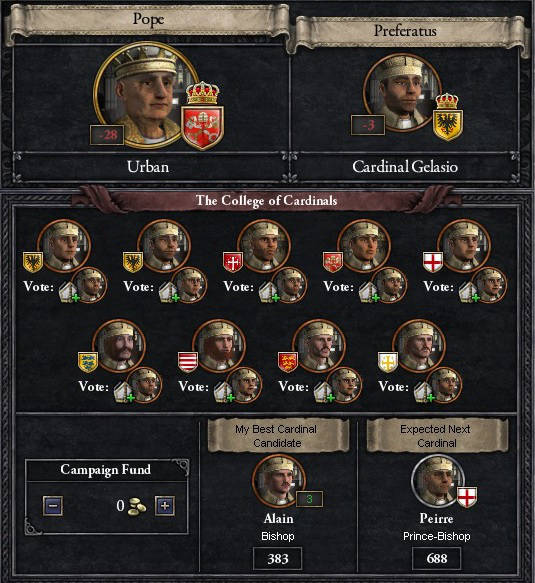
In order to use Papal succession (succ_papal_succession)对于其他宗教,第一步是修改继承法:
succ_papal_succession = {

	potential = {

		OR = {

			title = k_papal_state

			title = d_<my_religion>

		}

	}


	effect = {

		succession = papal_succession

	}

	revoke_allowed = {

		always = no

	}

}
宗教界面里应该会神奇地出现一个打开主主教屏幕的按钮!不过点击按钮会导致崩溃,需要做一些界面改装:
- Open domestic_religion.gui and copy the definition for window named domestic_religion_title_fraticelli_cardinal
- Create a file <my_religion>_domestic_religion.gui and paste the code.
- Replace occurrences of title_fraticelli_cardinal by the new religious title defined inside folder common/religious_titles (ex: title_<my_religion>_cardinal)
guiTypes = {

	windowType = {

		name = "domestic_religion_title_<my_religion>_cardinal"

		(...)


		### title cardinal entry 1

		windowType = {

			name = "title_<my_religion>_cardinal_entry_1"

			(...)

		}

		(...)

	}

}
Adding a focus
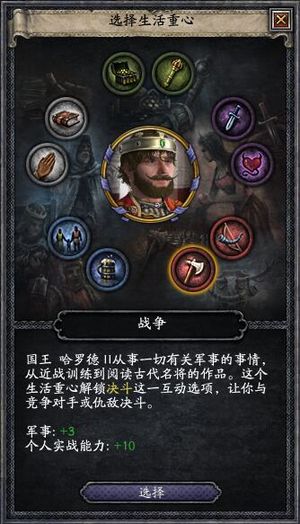
在 focusview.gfx 中,需要增加帧数:
spriteType = {

	name = "GFX_focusicons"

	texturefile = "gfx\\interface\\focusicons.tga"

	noOfFrames = 20

	loadType = "INGAME"

}
在gfx/ambition/中添加一个32*32的图标版本,并用spriteType名称GFX_引用,<focus_name><focus_name>作为common/ambition/00_focuses.txt中定义的新焦点
spriteType = {

	name = "GFX_<focus_name>"

	texturefile = "gfx/ambitions/<focus_name>.tga"

	noOfFrames = 1

	norefcount = yes

	effectFile = "gfx/FX/buttonstate.lua"

}
在focusview.gui中,添加第11个焦点,并调整其位置:
iconType = {

	name ="focusicon_11_selected"

	spriteType = "GFX_focusview_selected_focus"

	position = { x = 23 y = 154 }

}

positionType = {

	name = "focusicon_11"

	position = { x = 40 y = 171 }

}
Shortcuts
New keyboard shortcuts can be added via shortcut = "<key>".[1]
If using priority_shortcut flag, it will fire before any other shortcuts.
Minimap
- 主条目:Minimap modding
See also
References
| 历史 | 角色 • 家族 • 省份 • 头衔 • 剧本 |
| 脚本 | 指令 • 条件 • 作用域 • 修正 • 事件 • 决议 |
| 常规 | 定义 • 游戏规则 • 另类开局 • 宗教 • 文化 • 政体 • 特质 • 血脉 • 科技 • 法律 • 建筑 • 宣战理由 • 朝贡国 • 单位 • 目标 • 疾病 • 死亡 • 荣誉头衔 • 社团 • 宝物 • 地图外政权 • 内阁成员 • 贸易路线 • 继承 • 奇观 • 称号 |
| 图像/音效/本地化 | 地图 • 图形 • 盾徽 • 肖像 • 界面 • 小地图 • 音乐 • 本地化 |
| 其他 | 故障排除 • 验证器 • 控制台指令 • 编辑游戏存档 • Steam创意工坊 • EU4转档器模组制作 |
相关页面 (61)
Bookmark moddingConsole commandsEU4转档器模组制作Graphics moddingKeyboard shortcutsMinimap moddingPapal successionPatch 2.5Portrait moddingSteam创意工坊事件模组制作作用域修正内阁成员模组制作决议模组制作剧本模组制作单位模组制作历史模组制作另类开局模组制作图形模组制作地图外政权模组制作地图模组制作头衔模组制作奇观模组制作宗教模组制作定义宝物模组制作宣战理由模组制作家族模组制作小地图模组制作建筑模组制作指令控制台指令政体模组制作故障排除文化模组制作朝贡国类型模组制作本地化条件模组制作死亡模组制作法律模组制作游戏规则模组制作特质模组制作疾病模组制作目标模组制作盾徽模组制作省份模组制作社团模组制作科技模组制作称号模组制作继承模组制作编辑游戏存档肖像模组制作脚本荣誉头衔模组制作血脉模组制作角色模组制作贸易路线模组制作音乐模组制作